What your PC is really doing: the complete Windows guide
Six questions answer almost every complaint about a Windows machine — where the space went, what is running, where the data goes, why the memory is full, what uninstalled programs left behind, what starts on its own. The order to ask them in, and where each one leads.
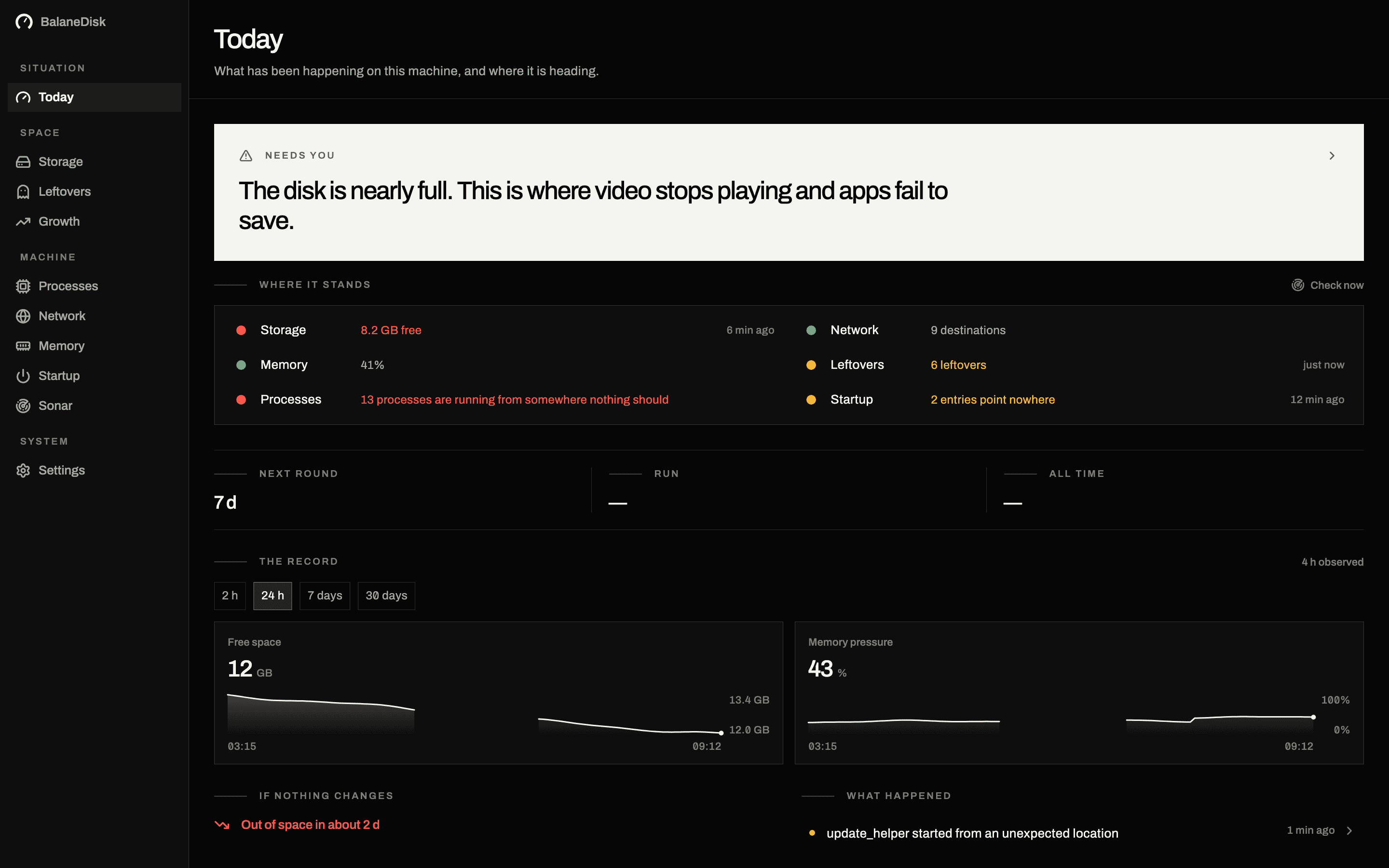
Most complaints about a Windows PC — it is slow, the drive is full, something is at 100 %, something is talking to the internet — come down to six questions. This is the map: what each question is, how to answer it with what ships in Windows, and which article goes deep on it.
Read it in order. The first answer changes what the later ones mean.
1. Where did the drive space go?
Why first: a nearly full system drive makes everything else worse — the page file cannot grow, updates fail halfway, and Windows starts moving things around instead of doing what you asked.
The built-in check: Settings → System → Storage. It gives you a total and a breakdown in which the largest slice is frequently unhelpful. Explorer, meanwhile, will not total the folders that matter, because most of them are hidden, protected, or made of hard links it counts more than once.
What it is actually made of: the component store (WinSxS), the hibernation file, restore points and shadow copies, Store app data under AppData\Local\Packages, and — on any machine with WSL or Docker — virtual disks that keep their size long after the data inside them is gone.
→ Windows storage full: where the space actually goes
2. What is running right now?
Why second: because Task Manager names the process that is spending CPU, not the one that is causing it — and on Windows those are routinely different.
The built-in check: Task Manager → Performance first, then Processes. The Performance tab tells you which resource is saturated. A disk at 100 % active time with the CPU at 8 % is a completely different problem from a CPU at 90 %, and the fix has nothing in common.
The single most common false lead: Antimalware Service Executable at the top of the CPU column. It is Defender inspecting files as they are written, and the file activity is usually somebody else's — a build, a sync client, a game updater. resmon → Disk names the actual culprit.
The other one: svchost.exe, which is not one thing but dozens of Windows services sharing a host process.
→ Antimalware Service Executable: why MsMpEng.exe eats your CPU
3. Why is the memory full?
Why third: for the same reason as on macOS — a full memory bar is what a healthy system looks like. Windows fills unused memory with cached file data, because idle memory buys you nothing.
The built-in check: Task Manager → Performance → Memory. Read In use, Committed and Cached together, not the free figure alone. Committed climbing well past physical memory while the disk stays busy is the shape of a real shortage; a large Cached number is not a problem, it is the point.
The pattern that matters: memory that stays committed for hours and does not fall after large applications are closed. A spike during an export that settles afterwards was the export.
→ Memory pressure, not free RAM: the only number that counts
4. Where is this machine sending data?
Why fourth: because an idle Windows PC opens dozens of connections in ten minutes — update, telemetry, connectivity checks, Defender cloud lookups, Store updates, and the updater of everything you installed. That is normal, and "normal" is still not the same as "known".
The built-in check: netstat -abno in an administrator terminal names the executable behind each connection. resmon → Network shows the same live, with bytes per second per process. Get-NetTCPConnection -State Established in PowerShell gives you the machine-wide list — including other users' connections, which is where Windows is genuinely more forthcoming than macOS.
The trap: resolving those addresses to companies by querying an online service hands over the list of your destinations, one address at a time, to whoever answers.
→ Where does my PC send data? How to find out on Windows
5. What did uninstalled programs leave behind?
Why fifth: because Windows' uninstaller removes the program and, by design, not its data. %APPDATA% and %LOCALAPPDATA% fill with folders named after programs that stopped existing years ago, and nothing in Windows offers to tell you which is which.
The built-in check: none. Settings → Apps lists what is installed. Nothing lists what is left over.
What makes it hard: Windows has no bundle identifier. All there is to go on is the folder name and what it looks like from the outside, matched against the installed programs in the uninstall registry keys. That match is a judgement with a confidence attached — which is why the right output is a finding to look at, not a deletion already performed.
→ Why BalaneDisk never deletes anything
6. What starts on its own?
Why last: a machine that is slow from the first minute after login has something starting with it. Windows spreads that across at least four places: the Run keys in the registry (per user and per machine), the Startup folder, scheduled tasks and services.
The built-in check: Task Manager → Startup apps covers the first two and gives you a rough "Startup impact". It says nothing about what any of those items is holding right now — which is the number that decides whether it is worth switching off.
The order, in two minutes
- 01Free space on C:. Under 10 %? Fix that first.
- 02Task Manager → Performance. Which resource is saturated — CPU, memory, or disk?
- 03If disk:
resmon→ Disk, sorted by total bytes per second. The name at the top is your cause. - 04If CPU and the name is Defender: the cause is whatever is writing the files, not Defender.
- 05If memory: compare Committed against physical, and watch whether it falls when you close things.
- 06If privacy is the complaint:
netstat -abno, and resolve names locally.
Why this is a measuring problem, not a cleaning problem
Every question above ends in a judgement: is this normal, is this mine, is this safe to remove. PC cleaners skip the judgement, because deleting is easy and judging is not. That is how a tool ends up offering to free 40 GB by emptying a folder that holds the only copy of something.
BalaneDisk answers all six on Windows. It reads processes through Win32_Process and checks each executable against its Authenticode signature, so a binary calling itself a system component from the wrong folder has nowhere to hide. It lists every TCP connection on the machine and resolves the destination to a company and a country from a database that ships inside the app. It measures Temp, Store package data, Downloads, the Docker data folder, the Windows Update cache and the Recycle Bin. It reads startup entries and matches leftover folders against the uninstall registry. And it stops there: it shows the size, explains the thing, and hands you the command or the folder.
It measures and never deletes. No account, and nothing it measures leaves the machine.
Mac user? The same six questions, different answers: what your Mac is really doing.
Questions people ask
- Why is my Windows PC suddenly slow?
- Four causes cover most cases: a nearly full system drive, one process holding the CPU — very often Defender scanning something another program keeps rewriting, memory pressure that forces constant paging, or a disk that is at 100 % active time while the CPU sits idle. Check free space first, because several of the others are consequences of it.
- What should I check first on a slow Windows machine?
- Task Manager, but the Performance tab rather than Processes: a disk at 100 % active time with an idle CPU is a completely different problem from a CPU at 90 %. Then Resource Monitor's Disk tab to find which process is producing the file activity — that is the question Task Manager cannot answer.
- Do I need a PC cleaner?
- No, and most of what they claim to free is either already handled by Storage Sense or is not safe to delete in the first place. What is missing on Windows is not a deleter — it is a tool that measures the places Explorer hides and tells you what each one actually is.