Antimalware Service Executable: why MsMpEng.exe eats your CPU
Task Manager shows 40 % CPU on a process nobody chose to run. What Microsoft Defender is actually doing, the three patterns behind a permanently loud MsMpEng.exe — and the exclusions that fix it without turning protection off.
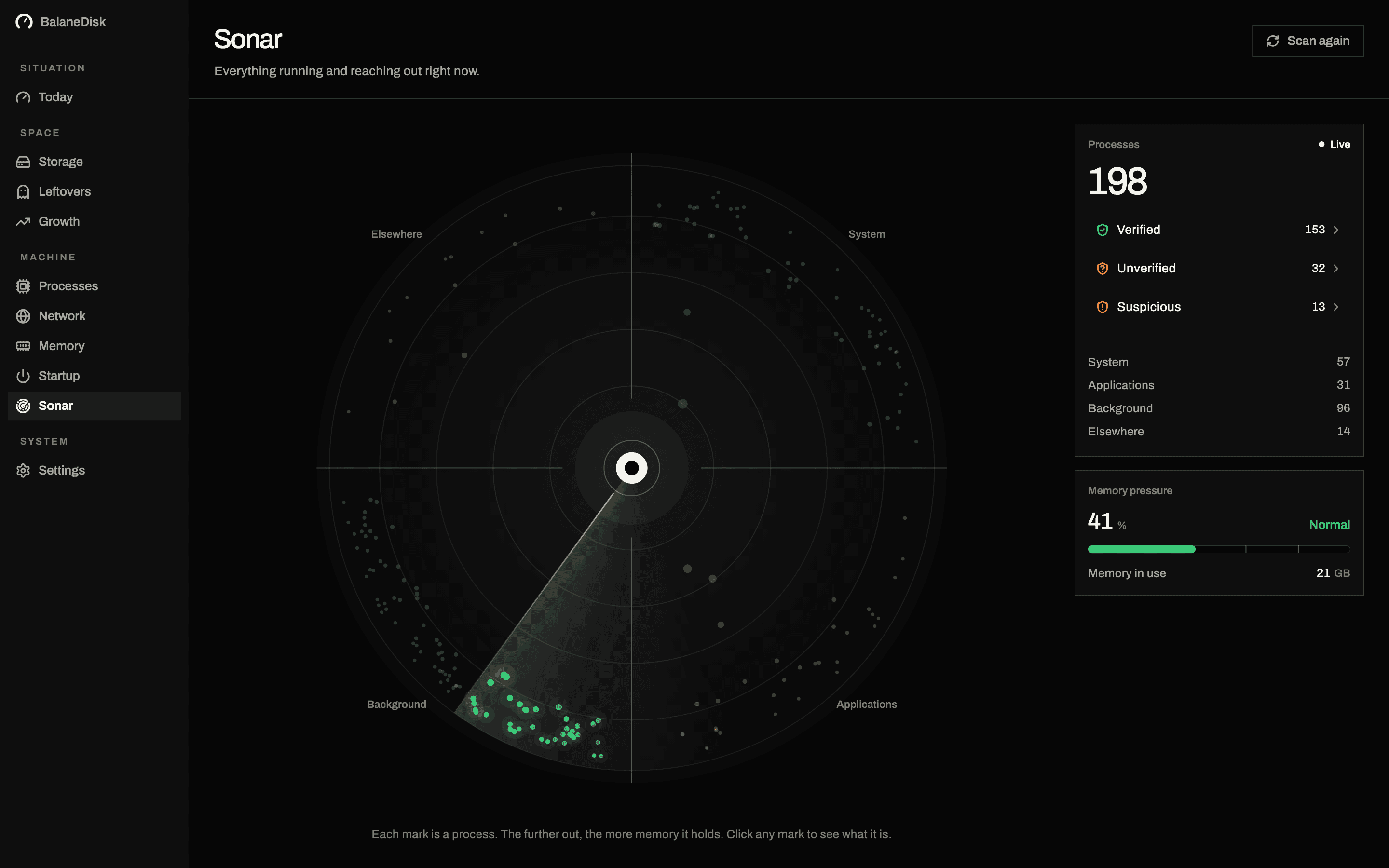
Task Manager, sorted by CPU. Top of the list: Antimalware Service Executable, 38 %. Nothing is open. Nothing is downloading. The fan says otherwise.
The name explains nothing, which is the whole problem. Here is what the process is, why it behaves like this, and which of the four common fixes is the one that does not cost you your antivirus.
What the process actually is
MsMpEng.exe is Microsoft Defender Antivirus. Not the window you open from the taskbar — that is Windows Security, a front end. MsMpEng.exe is the service underneath, and it does two jobs that look identical in Task Manager and are completely different in cause.
Real-time protection. Every file opened, written, renamed or executed is inspected before the calling program gets its answer. This is synchronous. A compiler writing 40 000 object files waits for Defender 40 000 times.
Scheduled scanning. A full scan walks the disk on its own timetable. Windows aims it at idle time, and its idea of idle is generous — three minutes without input counts.
On Windows 11, part of this moved into MpDefenderCoreService.exe. Same engine, same causes; if you only recognise one of the two names, the other is not something new that appeared on your machine.
The three patterns behind permanent load
A folder full of small files that something keeps rewriting
This is the common one, and it is almost always a developer machine or a gamer's. Real-time protection charges per file, not per gigabyte. One 8 GB video file costs almost nothing. A node_modules folder with 200 000 files costs more than the video, every time a build touches it.
The usual suspects, in order of how often they turn up:
| Folder | Why it is expensive |
|---|---|
node_modules, target, build, .gradle | tens of thousands of small files, rewritten on every build |
%LOCALAPPDATA%\Docker | layer store, constantly rewritten by pulls and builds |
WSL virtual disks (ext4.vhdx) | one enormous file that changes constantly |
| Game launcher patch folders | thousands of files during every update |
%TEMP% | whatever your toolchain drops there, all day long |
A scheduled scan that never finds an idle moment
The full scan is meant to run when you are away. If the machine is never away — a desktop that stays on, a laptop that only sleeps at night — Windows starts it anyway and lets it compete with your work. The symptom is high load at roughly the same time of day, for roughly the same duration, and then nothing for a day.
Something else generating file activity, with Defender only carrying the bill
The one that sends people down the wrong path. Defender is the process visible in Task Manager, but the cause is a backup tool, a sync client, an indexer or an updater churning through files. Defender is loud because something else is busy. Killing Defender would be treating the symptom of a symptom.
The way to tell the three apart is to ask which process is producing the file activity, not which is producing the CPU load. Task Manager will not tell you. Resource Monitor (resmon, Disk tab, "Processes with Disk Activity") will.
What to do — in the order that costs you least
1. Look before you change anything. resmon → Disk. Sort by "Total (B/sec)". If a name other than MsMpEng.exe sits at the top, that is your actual cause, and the rest of this list is optional.
2. Exclude the folders that are pure build output. Windows Security → Virus & threat protection → Manage settings → Exclusions. Add the folders, not the file types:
C:\Users\<you>\source\repos
C:\Users\<you>\AppData\Local\Docker
C:\Users\<you>\AppData\Local\Packages\...\LocalCache   (only if a specific app is the cause)
An exclusion is a hole. A build folder that only ever contains output you can regenerate is a defensible hole; C:\Users is not, and neither is C:\. If you find advice telling you to exclude MsMpEng.exe itself, close the tab — that is the one exclusion an attacker would ask you for.
3. Move the scheduled scan. Task Scheduler → Task Scheduler Library → Microsoft → Windows → Windows Defender → Windows Defender Scheduled Scan → Conditions. "Start the task only if the computer is idle for" is where the fix lives, and setting a longer idle requirement is more honest than disabling the task.
4. Check whether it is even Defender. If you installed a third-party antivirus, Defender should have stepped down to passive mode. Two engines scanning each other's scans is a known way to make a fast machine feel like 2009.
What not to do
Do not disable real-time protection to "test". Tamper Protection turns it back on, usually within minutes, and you will conclude the fix did not work when in fact it never applied.
Do not delete the Defender platform folder. It is under C:\ProgramData\Microsoft\Windows Defender\Platform, it holds several versions, and it does look like wasted space. It is not — Windows keeps the previous engine version so an update can be rolled back.
Do not follow the registry DisableAntiSpyware advice. Microsoft removed its effect for exactly this reason. Old guides still list it, and it does nothing but make you think you tried something.
Why one line of explanation beats a list of names
Task Manager gives you a name and a percentage. What it withholds is the sentence that turns the name into a decision: this is Defender scanning files as they are written. Once that sentence is there, the next question is obvious — who is writing the files? — and the answer is a folder you can exclude, not a service you should kill.
That is the part BalaneDisk ships: every running process gets a plain-language line in English or German next to its verdict, and the verdict comes from the file's own Authenticode signature rather than its name. A process calling itself MsMpEng.exe from a folder that is not C:\ProgramData\Microsoft\Windows Defender\Platform, without Microsoft's signature, is the one case in this article that is not a performance problem.
Next: Windows storage full: where the space actually goes · Where does my PC send data?
Questions people ask
- What is Antimalware Service Executable?
- It is the background service of Microsoft Defender Antivirus, and its file on disk is MsMpEng.exe. It runs real-time protection — every file that is opened, written or executed passes through it before the program that asked for it gets an answer. On Windows 11 a second process, MpDefenderCoreService.exe, carries part of the same work.
- Can I disable Antimalware Service Executable?
- Not permanently, and not from Task Manager. Tamper Protection reverses a switched-off real-time protection within minutes, and the registry route is undone by the next update. What you can do is narrow what it scans — exclusions for build folders and virtual disks — and move the scheduled full scan to a time when nobody is working.
- Is high CPU from MsMpEng.exe normal?
- In bursts, yes: after an update, on the first launch of a new program, during a compile that writes thousands of files. Permanently high with nothing running is not normal, and the usual cause is a folder full of small files that some other tool keeps rewriting — node_modules, a Docker layer store, a game launcher's patch directory.