Windows storage full: where the space actually goes
Settings says 40 GB is "Other" and Explorer shows nothing that size. The fourteen places the space really sits on Windows 10 and 11, how large each one typically gets — and which of them you can get back without breaking anything.
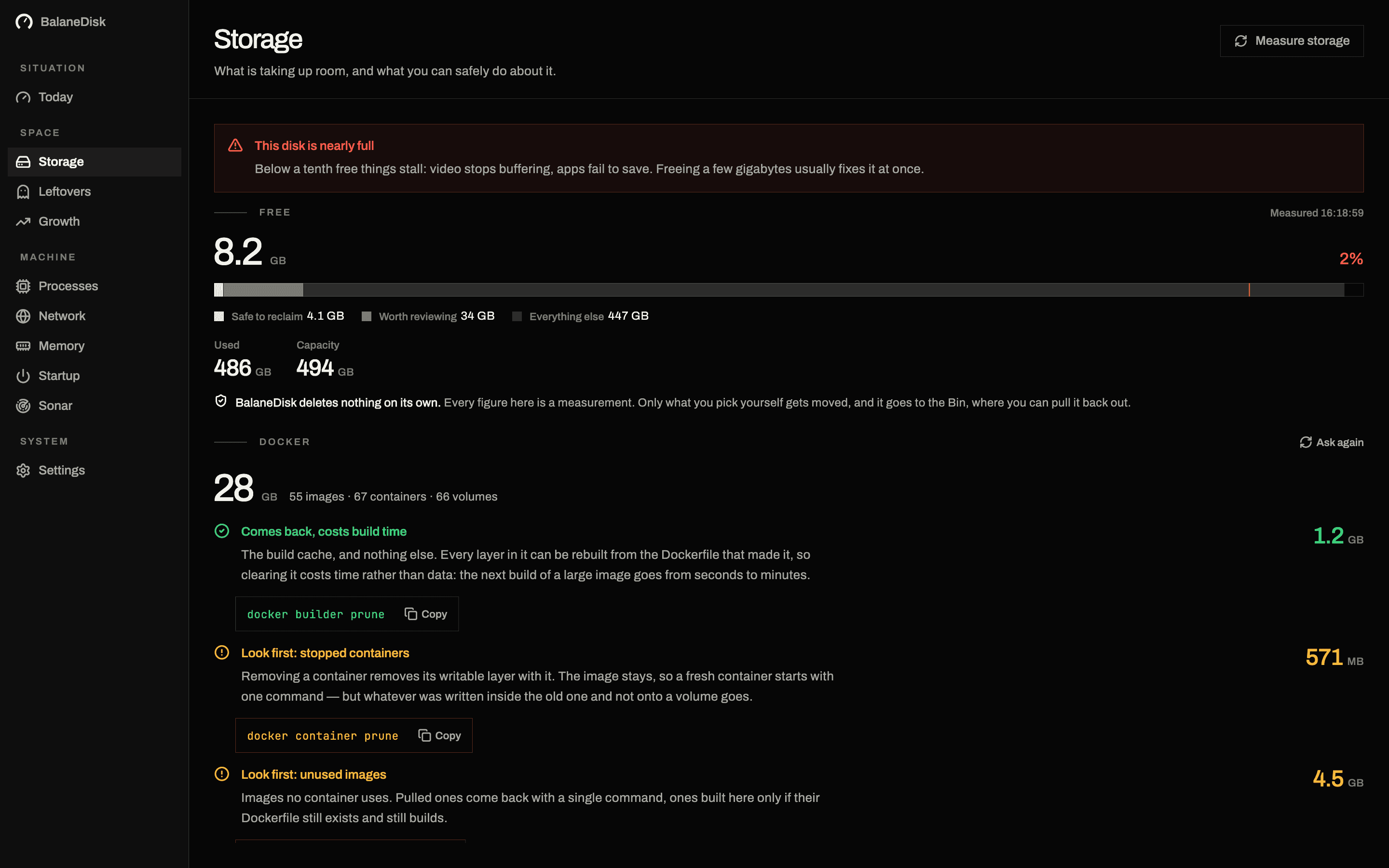
The warning arrives at the worst possible moment: "Low disk space on Local Disk (C:)". You open Settings → Storage, and Windows offers you a bar chart in which the largest slice is called Other. You open Explorer, add up every folder you can see, and land 60 GB short.
Neither view is lying. Both are leaving things out. Here are the fourteen places the space actually sits, what each typically weighs, and what happens if you touch it.
The fourteen places, by how often they are the answer
| Where | Typical size | What it is | Getting it back |
|---|---|---|---|
C:\Windows\WinSxS | 5–15 GB real | component store for every update | Dism … /StartComponentCleanup |
hiberfil.sys | 40 % of RAM | hibernation image | powercfg /h /type reduced |
pagefile.sys | 1–3× RAM | virtual memory | leave it alone |
| System Restore / shadow copies | 1–30 GB | restore points, VSS | cap it in System Protection |
%LOCALAPPDATA%\Packages | 2–40 GB | Store app data and caches | per app, from inside the app |
| WSL / Docker virtual disks | 5–100 GB | ext4.vhdx, docker_data.vhdx | compact after wsl --shutdown |
C:\Windows\SoftwareDistribution\Download | 0–10 GB | Windows Update cache | safe to empty |
C:\$Recycle.Bin | 0–50 GB | the Recycle Bin, per drive | empty it |
%TEMP% | 0.5–20 GB | temporary files nothing cleans up | safe to empty |
| Downloads | 5–200 GB | the folder nobody revisits | your call, file by file |
| Browser caches and profiles | 1–10 GB | …\User Data\Default\Cache | from the browser's settings |
C:\Windows.old | 10–30 GB | the previous Windows, after an upgrade | Storage Sense, or wait 10 days |
| Delivery Optimization cache | 0–10 GB | update parts shared with other PCs | Settings → Storage → Temporary files |
| Crash dumps | 0–30 GB | Memory.dmp, %LOCALAPPDATA%\CrashDumps | safe to delete |
If you only read one row, read the first. It is the one that produces the most bad advice on the internet.
WinSxS: the folder that is not the size Explorer says
Right-click C:\Windows\WinSxS → Properties, and Explorer will happily tell you it is 12 GB. That number is close to meaningless, because most of what is inside WinSxS is hard links — directory entries pointing at files that also live elsewhere in Windows. Explorer counts the bytes once per link. The disk stores them once.
The real number comes from one command, run in an administrator terminal:
Dism.exe /Online /Cleanup-Image /AnalyzeComponentStoreIt prints a size that includes the shared part, and then a line called "Actual Size of Component Store" — the space genuinely attributable to WinSxS. On most machines that is 5 to 8 GB, and it ends with a verdict on whether a cleanup is even recommended.
If it is:
Dism.exe /Online /Cleanup-Image /StartComponentCleanupThat removes superseded components — the old versions of updated files, which Windows keeps for a while so an update can be rolled back. Expect 1 to 4 GB, not 12.
/ResetBase goes further and drops the ability to uninstall any currently installed update. It is a legitimate option on a machine that is done changing; it is not something to add to a command because a forum post did.
Never delete anything inside WinSxS by hand. The folder is not a cache. Removing a component by hand does not free the space you think it does — the file it hard-links to stays — and it does break the next update.
hiberfil.sys: the biggest single file on most laptops
Hibernation writes the contents of RAM to disk. So the file scales with your memory: Windows defaults to a reduced hibernation file at roughly 40 % of installed RAM. On a 32 GB laptop that is a 12–13 GB file sitting on C:, and it is there whether or not you have hibernated once this year.
powercfg /a                     what this machine actually supports
powercfg /h /type reduced       keeps hibernation, smaller file (default)
powercfg /hibernate off         deletes the file entirely
The catch nobody mentions: switching hibernation off also switches off Fast Startup, because Fast Startup is a partial hibernation of the kernel. If your PC currently boots in four seconds, that is what you are trading away.
pagefile.sys looks like a similar target and is not. Windows sizes it from workload, applications assume it exists, and a machine with the page file disabled does not run faster — it runs until something big fails to allocate.
The virtual disks that never shrink
If you run WSL or Docker Desktop, this is very likely your actual answer, and it is invisible to every "disk cleanup" tool.
WSL stores each distribution in a single virtual disk file, typically:
%LOCALAPPDATA%\Packages\<distro>\LocalState\ext4.vhdx
%LOCALAPPDATA%\Docker\wsl\disk\docker_data.vhdx
These files grow as data is written inside them and do not shrink when it is deleted. You can docker system prune -a, free 40 GB inside the VM, and watch Windows report exactly as little free space as before. The space is free inside the disk image; the image keeps its outer size.
Getting it back is two steps. Shut everything down first:
wsl --shutdownThen compact. With Hyper-V available:
Optimize-VHD -Path "$env:LOCALAPPDATA\Docker\wsl\disk\docker_data.vhdx" -Mode FullWithout it, diskpart does the same job:
diskpart
select vdisk file="C:\Users\<you>\AppData\Local\Docker\wsl\disk\docker_data.vhdx"
compact vdisk
exit
Docker Desktop also has a "Clean / Purge data" button, which is the blunt version of the same thing: it discards everything, including named volumes. Read what prune actually deletes before pressing it — the four accounts behind the number are the same on Windows as on macOS.
Restore points, and the setting that caps them
System Restore keeps shadow copies, and by default it may use several percent of the drive. To see what it is actually holding, in an administrator terminal:
vssadmin list shadowstorageThe cap lives in System Properties → System Protection → Configure, where a slider sets maximum usage. Lowering it deletes the oldest restore points immediately. Turning protection off entirely deletes all of them — which is a real 10–30 GB and a real loss of the one thing that undoes a bad driver install.
AppData\Local\Packages: where Store apps hide their weight
Every app from the Microsoft Store keeps its data under %LOCALAPPDATA%\Packages\, and a chat client that has cached three years of images can weigh more than the app itself. Windows will not clean these for you, because from its side they are not caches — they are application data.
The route that works is per app: open the app's own settings and look for its cache or storage option. The route that does not is deleting the folder, which is how you sign yourself out of everything and lose local drafts.
%LOCALAPPDATA%\Temp is the opposite case — genuinely disposable, and nothing empties it reliably. Files locked by running programs will refuse to delete; that is expected, skip them.
What Storage Sense does and does not do
Settings → System → Storage → Storage Sense automates the safe subset: Recycle Bin over a certain age, %TEMP%, Downloads if you tell it to (be careful), Windows Update leftovers, and OneDrive files that are already synced to the cloud.
What it does not touch: WinSxS beyond the standard cleanup, hibernation, restore points, virtual disks, Store app data, browser profiles, or anything on a second drive. Which is precisely the list above — the reason the number in Settings never quite matches the number in Explorer.
The order that gets the most space for the least risk
- 01Measure before deleting. Which of the fourteen is actually large on this machine? A generic list is a hypothesis, not a finding.
- 02Empty the Recycle Bin and
%TEMP%. Free, instant, no consequences. - 03Run
/AnalyzeComponentStore. If it recommends a cleanup, run it. If not, WinSxS was never your problem. - 04Compact the virtual disks if you use WSL or Docker. Often the largest single win on a developer machine.
- 05Cap restore points rather than switching protection off.
- 06Deal with
hiberfil.syslast — and only after deciding whether you want Fast Startup.
That order exists because deletion is irreversible and measurement is not. It is also why BalaneDisk shows you the size, the verdict and the exact command or folder for each finding — and then stops. On Windows it measures Temp, the Store package data, Downloads, the Docker data folder, the Windows Update download cache and the Recycle Bin, prints what each one is really holding, and leaves the decision where it belongs.
Next: Antimalware Service Executable: why MsMpEng.exe eats your CPU · Why BalaneDisk never deletes anything
Questions people ask
- Can I delete the WinSxS folder to free space?
- No. WinSxS is the component store every Windows update is assembled from, and most of what Explorer counts inside it are hard links to files that already exist elsewhere — so its real size is far smaller than the number you see. The supported way to shrink it is Dism /Online /Cleanup-Image /StartComponentCleanup, and the honest measurement is /AnalyzeComponentStore.
- What is hiberfil.sys and can I remove it?
- It is the file hibernation writes your memory into, and by default Windows sizes it at a large fraction of your RAM — on a 32 GB machine that is typically over 10 GB. powercfg /hibernate off deletes it and disables hibernation along with Fast Startup. If you use either, powercfg /h /type reduced keeps hibernation and shrinks the file instead.
- Why does Windows say a drive is full when my folders do not add up?
- Because most of the difference sits in places Explorer either hides or refuses to total: the component store, restore points and shadow copies, the page and hibernation files, per-app data under AppData\Local\Packages, and virtual disks for WSL or Docker that keep their size after the data inside them is deleted.