Mac storage full: where the gigabytes actually hide
"Your disk is almost full" — and Finder shows you nothing. The twelve places the space really sits, how large each one typically gets, and how much of it comes back for free.
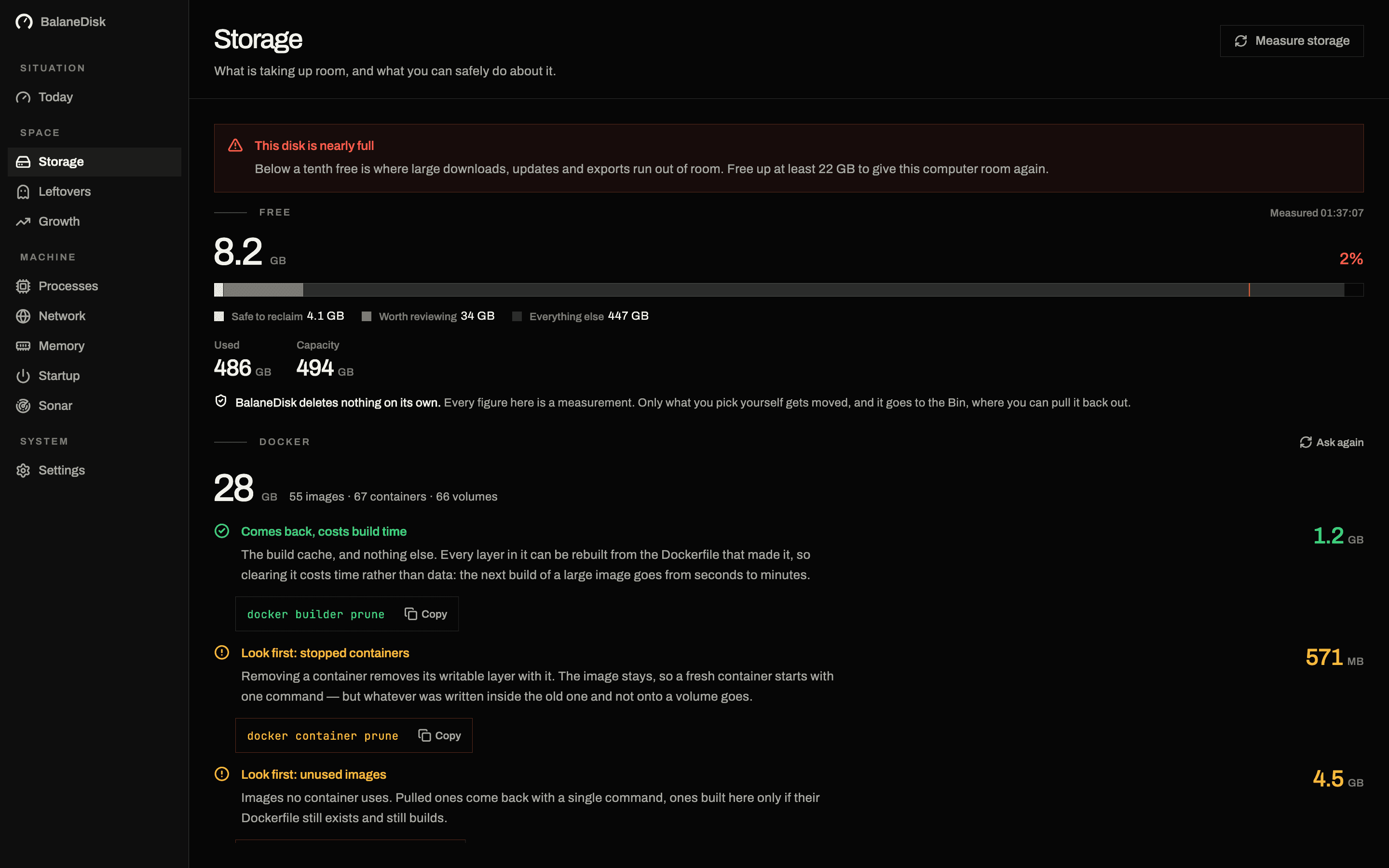
The warning always arrives at the wrong moment: "Your disk is almost full." You open Finder, find a home folder holding maybe 40 GB — and System Settings insists that 900 of 1000 GB are in use. The difference lives in places Finder does not show by default.
This is the map of those places, in the order they pay off on a working machine.
Why "System Data" is so large
Apple calls the category System Data, and it is not a category but a remainder: everything macOS could not file anywhere else. It regularly contains:
- Application caches under
~/Library/Cachesand/Library/Caches - Sandboxed app containers under
~/Library/Containers - Local APFS snapshots that Time Machine parks on the internal disk
- Logs and diagnostic reports under
~/Library/Logs - Developer leftovers, if Xcode or Docker was ever installed
None of these show up when you search your home folder for large files. That is why a full Mac feels like a riddle — the data is not hidden, it is simply not where anyone looks.
Purgeable space, and the snapshots behind it
Delete a 30 GB folder, check the free space, and find that nothing changed. This is the single most confusing thing about a full Mac, and it has one explanation.
macOS counts some occupied space as purgeable: data it is holding but would release under pressure. The largest contributor is local APFS snapshots — Time Machine parks hourly snapshots on the internal disk when the backup drive is not connected, and each one pins the state of the disk at that moment. A file you deleted an hour ago is still fully present inside the snapshot that was taken before you deleted it.
To see them:
tmutil listlocalsnapshots /
diskutil apfs listSnapshots /
macOS thins these automatically when space runs low, and it keeps them for up to 24 hours by default. That is why "delete something and wait" genuinely works and feels like superstition. If you need the space now, tmutil deletelocalsnapshots removes a specific one — and removes the local rollback it was providing.
Two consequences worth carrying:
- The number Finder shows for free space and the number a disk tool computes will disagree, and neither is wrong.
- Measuring right after a large deletion measures the snapshot, not the folder.
The twelve places, ordered by yield
| Place | Typical | Does it come back? |
|---|---|---|
~/Library/Developer/Xcode/DerivedData | 10–60 GB | entirely, rebuilt on the next build |
| Docker (images, volumes, build cache) | 5–80 GB | partly — volumes can be data |
~/Library/Developer/CoreSimulator/Devices | 5–40 GB | per simulator, each with its own data |
~/Library/Developer/Xcode/iOS DeviceSupport | 3–25 GB | entirely, re-downloaded when needed |
~/.npm, ~/.pub-cache, ~/Library/Caches/pip | 2–15 GB | entirely, purely re-downloadable |
Homebrew downloads (brew cleanup -n) | 1–10 GB | entirely; Homebrew names the figure itself |
~/Downloads | 2–40 GB | your call — usually installers from 2023 |
~/Library/Mail (attachments) | 1–30 GB | through Mail's settings, not through Finder |
| iPhone and iPad backups | 5–150 GB | only if a copy exists elsewhere |
| Photos library (originals kept local) | 10–400 GB | through iCloud optimisation, not by deleting |
| Bin | 0–50 GB | instantly, and routinely forgotten |
| Leftovers of removed applications | 0.5–8 GB | entirely, once they have been matched |
The order matters: on a developer machine the first row often yields more than the next five combined, and it costs exactly nothing — the next build puts it all back.
The three that only the owning app can shrink
Three rows in that table cannot be dealt with in Finder at all, and trying is how people lose things.
Photos. The library under ~/Pictures/Photos Library.photoslibrary is a package, not a folder, and deleting anything inside it corrupts the database. The supported lever is Photos → Settings → iCloud → Optimise Mac Storage, which keeps full-resolution originals in iCloud and thumbnails locally. On a library with fifteen years of originals in it, that is the largest single win available on the machine — and it is reversible.
Mail. Attachments are stored per message under ~/Library/Mail, and the account settings decide whether attachments are downloaded at all. Mail → Settings → Accounts → Account Information → Download Attachments: None stops the growth; existing ones go with the messages.
iPhone and iPad backups. Under ~/Library/Application Support/MobileSync/Backup, one folder per device, and they are frequently the largest single item on a family Mac. Finder → your device → Manage Backups lists them with dates. Deleting the backup of a phone you still own and do not otherwise back up is a real loss, so check iCloud backup is on for that device first.
The mistake cleaning software makes
A cleaner sees a 41 GB file called Docker.raw and offers to empty it. What it does not see is that four separate accounts live inside, and one of them is named volumes — the database somebody created for a project a year ago.
du can measure how large a folder is. Only the tool that owns the folder knows how much of it comes back for free. So BalaneDisk asks the tool:
docker system df -v
brew cleanup -n
xcrun simctl list -j
Every one of those calls is read-only, and each answers the question a folder size leaves open.
What ten minutes actually gets you
A realistic order for a Mac that is full:
- 01Empty the Bin. Free, instant, permanently forgotten.
- 02
~/Library/Developer/Xcode/DerivedData— if present, usually the single largest item. - 03Clear Docker in stages, never in one sweep: build cache first, then unused images, volumes last and one at a time.
- 04Review the simulators. A device you have not booted in two iOS releases still holds its full data set.
- 05Package manager caches through their own commands.
- 06Go through Downloads. Installers, DMGs and ZIPs of things that are long since installed.
After that a typical developer Mac is 60 to 120 GB lighter without a single document of yours being touched.
Why we still delete nothing
BalaneDisk shows each of these findings with its size, its verdict and the exact route — the command the owning tool wants, or the folder opened in Finder. Nothing is deleted. Software that empties folders unasked is asking for trust with data it does not understand; the decision, and the undo, stay with you.
More on that: Why BalaneDisk never deletes anything.
How much free space a Mac should keep
Ten to fifteen percent, as a rule of thumb. Below that, APFS gets measurably slower at creating snapshots and writing large files, some applications abort a save instead of waiting, and macOS starts spending time moving things around instead of doing what you asked. A "slow Mac" is a full Mac often enough that free space is the first thing worth checking — before Activity Monitor, before anything else.
That is also why this is the first of the six questions in what your Mac is really doing: the answer changes what every later measurement means.
Next: Docker is eating your Mac's disk: what prune really deletes · A DaisyDisk alternative that tells you what the folder is · Windows machine? Where the space actually goes on Windows
Questions people ask
- Why does "About This Mac" show more used space than my folders add up to?
- Because most of it sits in hidden folders under ~/Library, in APFS snapshots and in system data that Finder does not display. The "System Data" category is not a category at all — it is the remainder macOS could not file anywhere else.
- Can I just delete ~/Library/Caches?
- Technically yes, usefully rarely. Most applications rebuild their cache immediately; some lose signed-in sessions or local drafts on the way. Going after the big ones specifically — Xcode, Docker, npm, through their own commands — returns more space and costs nothing.
- How much free space should an SSD keep?
- Ten to fifteen percent as a rule of thumb. Below that, APFS gets noticeably slower at creating snapshots and writing large files, and some applications abort a save instead of waiting.